
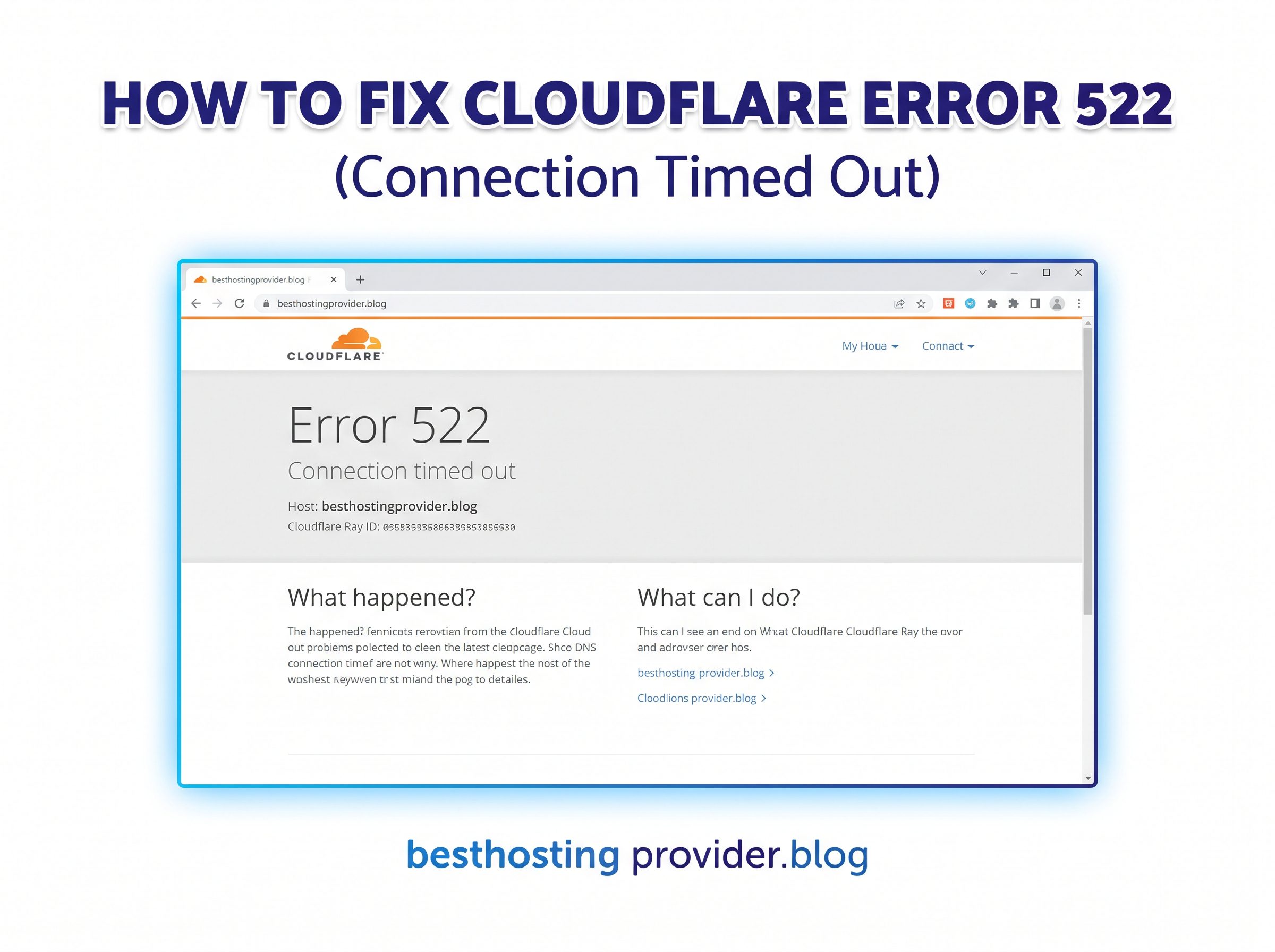
Is your website down and showing Cloudflare Error 522: Connection Timed Out? This error means Cloudflare cannot communicate successfully with your website’s origin server within the expected time.
The problem may involve your hosting server, firewall, DNS settings, or network connection. This guide explains how to identify the likely cause and troubleshoot it safely, even if you are a beginner.
Quick Answer
To fix Cloudflare Error 522, start by checking your hosting provider’s server status. Next, confirm that your Cloudflare DNS records point to the correct origin IP address. If both are correct, ask your hosting provider to check whether its firewall is blocking Cloudflare IP addresses or whether the server is overloaded.
Do not immediately reinstall WordPress, delete DNS records, or disable your firewall. First, identify the cause of the connection timeout.
What Causes Cloudflare Error 522?
Cloudflare acts as a reverse proxy between website visitors and your origin server, which is the server hosting your website.
According to Cloudflare’s official Error 522 documentation, the error occurs when the expected connection response or acknowledgment does not arrive within the required time.
Common causes include:
- Server downtime: Your hosting server is offline or its web service is not responding.
- Firewall restrictions: Your server blocks or rate-limits Cloudflare IP addresses.
- Incorrect DNS records: Cloudflare points to an outdated or incorrect origin IP address.
- Server overload: High traffic or limited server resources prevent connections from being handled properly.
- Network problems: Connections between Cloudflare and your hosting server are interrupted or dropped.
The error alone does not identify which cause applies to your website.
How to Fix Cloudflare Error 522 Step by Step
Step 1: Check Your Hosting Server
What to check: Determine whether your hosting provider is experiencing an outage or whether your server is available.
What to do:
- Visit your hosting provider’s official status page.
- Check your hosting control panel for outage, maintenance, or account notices.
- If the control panel is accessible, check whether your website’s hosting service is active.
- Contact hosting support if you cannot confirm that the server is working.
How to verify: Reload your website after the provider confirms that the server is available.
If it still fails: Ask your host to confirm that the web server accepts HTTP and HTTPS connections. A working control panel does not necessarily mean the website server is healthy.
Step 2: Verify Your Cloudflare DNS Records
An incorrect origin IP address can cause Cloudflare to send requests to the wrong server.
What to check: Compare your Cloudflare DNS records with the current IP address supplied by your hosting provider.
What to do:
- Sign in to your Cloudflare dashboard.
- Select your website and open DNS > Records.
- Find the relevant
AorAAAArecord for your domain or subdomain. - Confirm the intended origin IP address with your hosting provider.
- Correct the record only if you have confirmed that its destination is wrong.
An A record points to an IPv4 address, while an AAAA record points to an IPv6 address.
How to verify: After correcting a confirmed mistake, revisit your website and check whether the error disappears.
If it still fails: Allow time for relevant DNS caches to update, then continue investigating server connectivity and firewall rules. See the official Cloudflare DNS guide.
Step 3: Check Whether a Firewall Blocks Cloudflare
A firewall protects your server by controlling incoming connections. Incorrect rules may block legitimate Cloudflare traffic and prevent visitors from reaching your website.
What to check: Ask whether your hosting provider uses a server firewall, security software, or automatic IP-blocking rules.
What to do:
- Check whether Cloudflare IP addresses are blocked or rate-limited.
- Review firewall logs around the time the error occurred.
- Ask your hosting provider to allow the official Cloudflare IP ranges where required.
- If you administer your own server, follow Cloudflare’s official IP address documentation.
How to verify: Once the relevant rule is corrected, test the website again and ask your provider to confirm that Cloudflare connections are reaching the server.
If it still fails: Ask the provider to investigate dropped connections, network filtering, and server resource limits.
Never disable your firewall permanently just to test whether the website works. Correct the specific rule responsible for the problem.
Step 4: Check Server Resources
An overloaded server may struggle to accept new connections. This can happen when traffic increases or a hosting account reaches its resource limits.
What to check: Look for high CPU or memory usage, resource-limit warnings, and errors that appear during traffic spikes.
What to do:
- Open your hosting control panel.
- Review available resource-usage reports.
- Check whether the problem coincides with a traffic increase or a resource-intensive task.
- If you use WordPress, consider whether a recent backup, plugin update, or scheduled task coincides with the outage.
- Ask your hosting provider to inspect server load and web server logs.
How to verify: Check whether resource usage returns to normal and whether the website becomes accessible again.
If it still fails: Your provider may need to investigate server processes, connection limits, or network issues. Do not upgrade your hosting plan without evidence that resource capacity is the cause.
Step 5: Review Server Logs and Get Technical Help
If the previous checks do not solve the problem, server logs can help identify where the connection is failing.
What to check: Relevant web server, firewall, network, and resource logs around the time of the error.
What to do:
- Record the affected URL and the approximate time of the outage, including the timezone.
- Save the Cloudflare Ray ID shown on the error page, if available.
- Ask your hosting provider to review relevant logs.
- Request checks for blocked connections, server overload, dropped packets, and incorrect origin configuration.
How to verify: The provider should be able to report whether the server is receiving Cloudflare connections and whether any relevant failures appear in its logs.
If it still fails: Share the diagnostic findings with Cloudflare support if appropriate. Cloudflare’s 5xx troubleshooting guide explains which details help investigate these errors.
How to Confirm the Fix Worked
After the suspected cause has been corrected:
- Reload the affected page.
- Open the website in a private browser window.
- Test the homepage and another important page.
- Confirm that Error 522 no longer appears.
- If the error returns, record the time and Ray ID so your hosting provider can compare them with server logs.
A private browser window helps rule out some local browser issues, but it does not bypass Cloudflare or the origin server. If you manage the server, an administrator can also test origin connectivity using the correct hostname and server address.
Common Mistakes to Avoid
- Do not delete DNS records without confirming their purpose.
- Do not disable firewall protections permanently.
- Do not reinstall WordPress just because Error 522 appears.
- Do not change several server settings at the same time.
- Back up important configuration before making significant changes.
These precautions help prevent additional downtime while you investigate the original problem.
Frequently Asked Questions
1. What does Cloudflare Error 522 mean?
It means Cloudflare timed out while communicating with your origin server. The cause may be a server outage, firewall restriction, incorrect origin IP address, or network problem.
2. Can I fix Error 522 without server access?
Yes, you can check your hosting provider’s status and verify your DNS records. However, firewall and server-level problems may require assistance from your hosting provider.
3. Will changing DNS fix Error 522?
Only if the relevant DNS record points to the wrong origin. If the record is already correct, investigate server availability, firewall rules, and connectivity instead.
4. Can a WordPress plugin cause Error 522?
A plugin may contribute indirectly if it affects server load or security settings. However, Error 522 alone does not prove that a plugin is responsible. Check server connectivity before changing WordPress settings.
5. What should I do if Error 522 keeps returning?
Record when the error occurs and contact your hosting provider. Ask them to check server load, firewall logs, Cloudflare IP restrictions, and network connectivity.
Conclusion
Cloudflare Error 522 usually requires checking the connection between Cloudflare and your origin server. Start with hosting availability and DNS, then investigate firewall rules, server resources, and logs. If the cause is not clear, your hosting provider can perform the server-level checks needed to restore access safely.
Leave a Reply